Showing posts with label ci. Show all posts

Saturday, 24 February 2018

Serverless static website - part 8

All the way to this point, we have created the resources that allow us to store our source code and deploy it to S3 bucket. However, this build/deploy process has to be triggered manually by going to the console, finding the CodeBuild project and clicking Start build button.

This doesn't sound good enough for a complete development cycle. We need something that links changes in CodeCommit repository and CodeBuild project together so the build process is triggered automatically when changes are pushed to git. That magic link is called CloudWatch

Amazon CloudWatch is a monitoring service for AWS cloud resources and applications you run on AWS. Amongst other things it allows to create event rules that watch service events and trigger actions on target services. In this case we are going to watch changes in CodeCommit repository and link that to the Start build action on CodeBuild.

Creating the Rule

First, we need to go to CloudWatch console, to get there, select Services from the top menu, then under Management Tools, select CloudWatch. Once there, select Rules from the left hand side menu, under Events category.

Configure the Event source

We'll see two panes, the left hand side is for the event source, the right one is to choose the target of our rule.
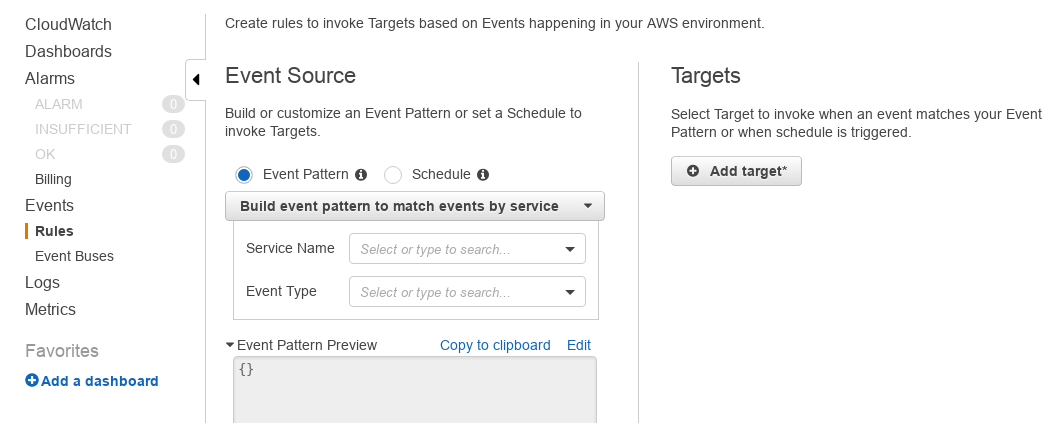
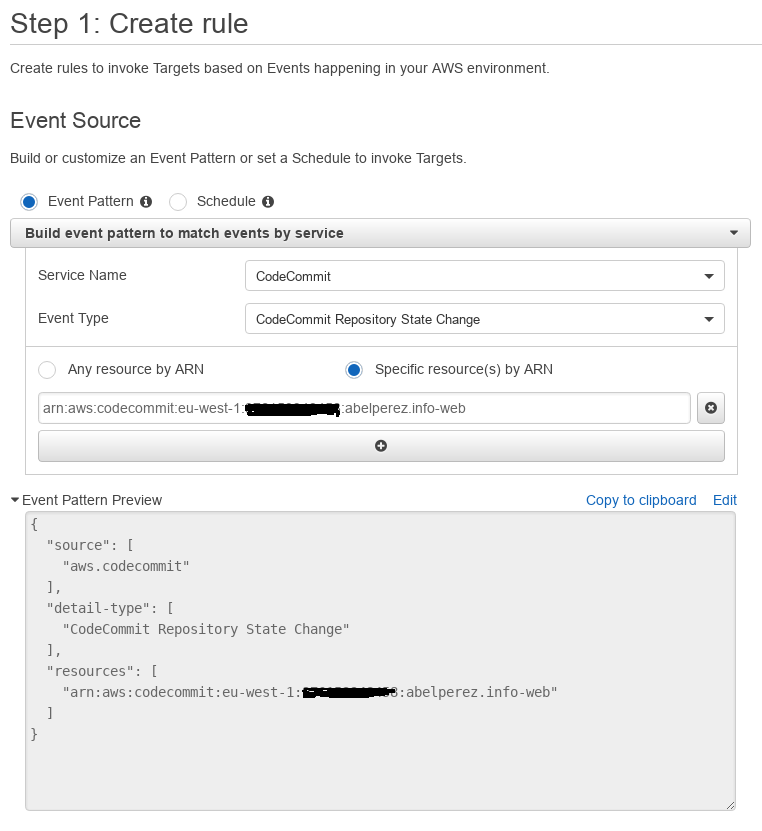
On the left side, select Event Pattern radio button option (default one), next from the drop down menu, select Events by Service. For Service Name, find the option corresponding to CodeCommit and Event Type CodeCommit Repository State Change.

Since we are only interested in the changes of the repository we previously created, select Specific resource(s) by ARN radio button option. Then, enter the ARN of the corresponding CodeCommit repository, which can be found by going to Settings in CodeCommit console. It should be something like arn:aws:codecommit:eu-west-1:111111111111:abelperez.info-web.
Configure the Target

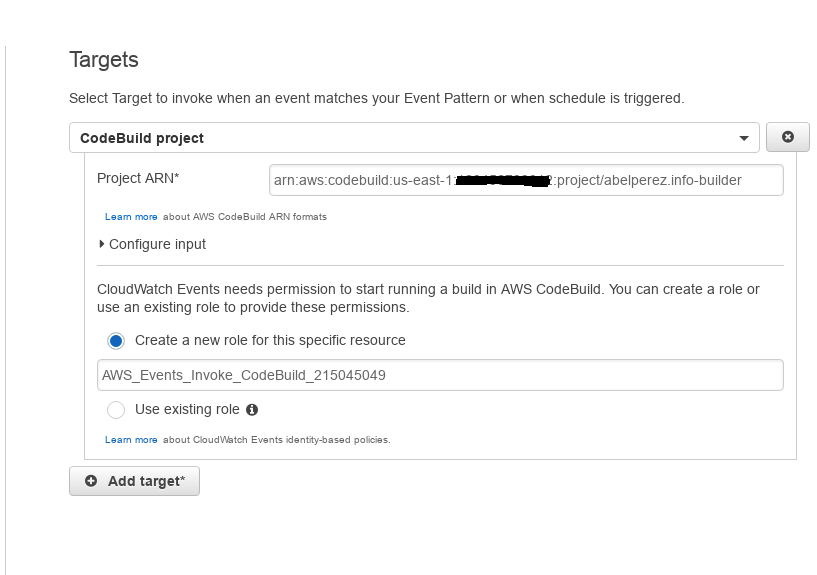
On the right side, click Add Target, then from the drop down menu, select CodeBuild project. A new form is displayed where we need to enter the project ARN, this is a bit tricky because for some reason, CodeBuild console doesn't show this information. Head to ARN namespaces documentation page and find CodeBuild, the format will be something like arn:aws:codebuild:us-east-1:111111111111:project/abelperez.info-builder.

Next step is to define the role, which in this case, we'll leave as it is proposed to Create a new role for this specific resource, AWS will figure out what permissions based on the type of resource we set as target, this might not be entirely accurate in the case of Lambda as target, we'd need to edit the role and add some policy for specific access.

We skipped Configure input on purpose as no input is required to trigger the build, so no need to change that setting.
Finish the process

Click on Configure details to go to step 2 where the process will finish.
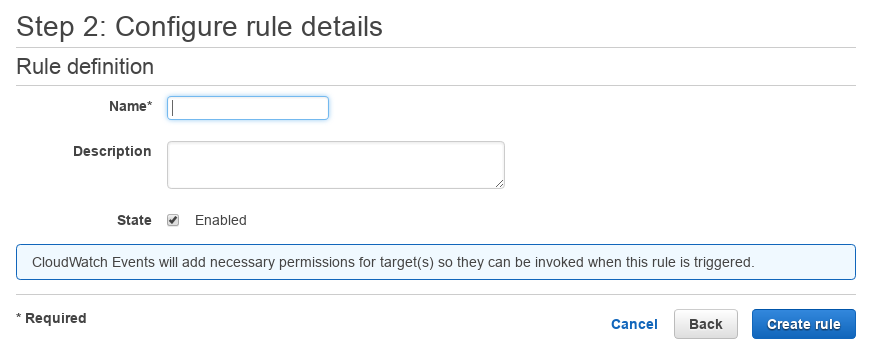
Enter name and optionally a description, leave State as Enabled so it will be active from the moment we create it. Click on Create rule finish the process.
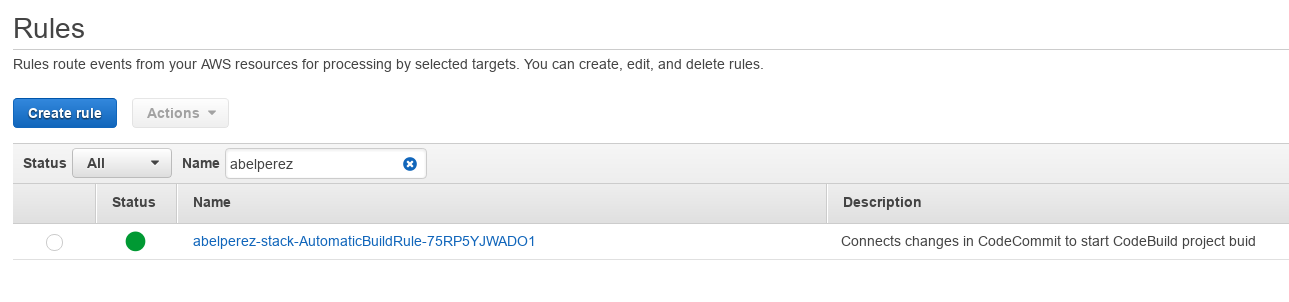
Let's test it

How can we know if the rule is working as expected? Since we connected changes on CodeCommit repository with starting a build on CodeBuild, let's do some changes to our repository, for example, adding a new file index3.html

abel@ABEL-DESKTOP:~/Downloads/abelperez.info-web$ git add index3.html 
abel@ABEL-DESKTOP:~/Downloads/abelperez.info-web$ git commit -m "3rd file"
[master e953674] 3rd file
 1 file changed, 1 insertion(+)
 create mode 100644 index3.html
abel@ABEL-DESKTOP:~/Downloads/abelperez.info-web$ git push
Counting objects: 3, done.
Delta compression using up to 4 threads.
Compressing objects: 100% (2/2), done.
Writing objects: 100% (3/3), 328 bytes | 0 bytes/s, done.
Total 3 (delta 1), reused 0 (delta 0)
To ssh://git-codecommit.eu-west-1.amazonaws.com/v1/repos/abelperez.info-web
   27967c1..e953674  master -> master

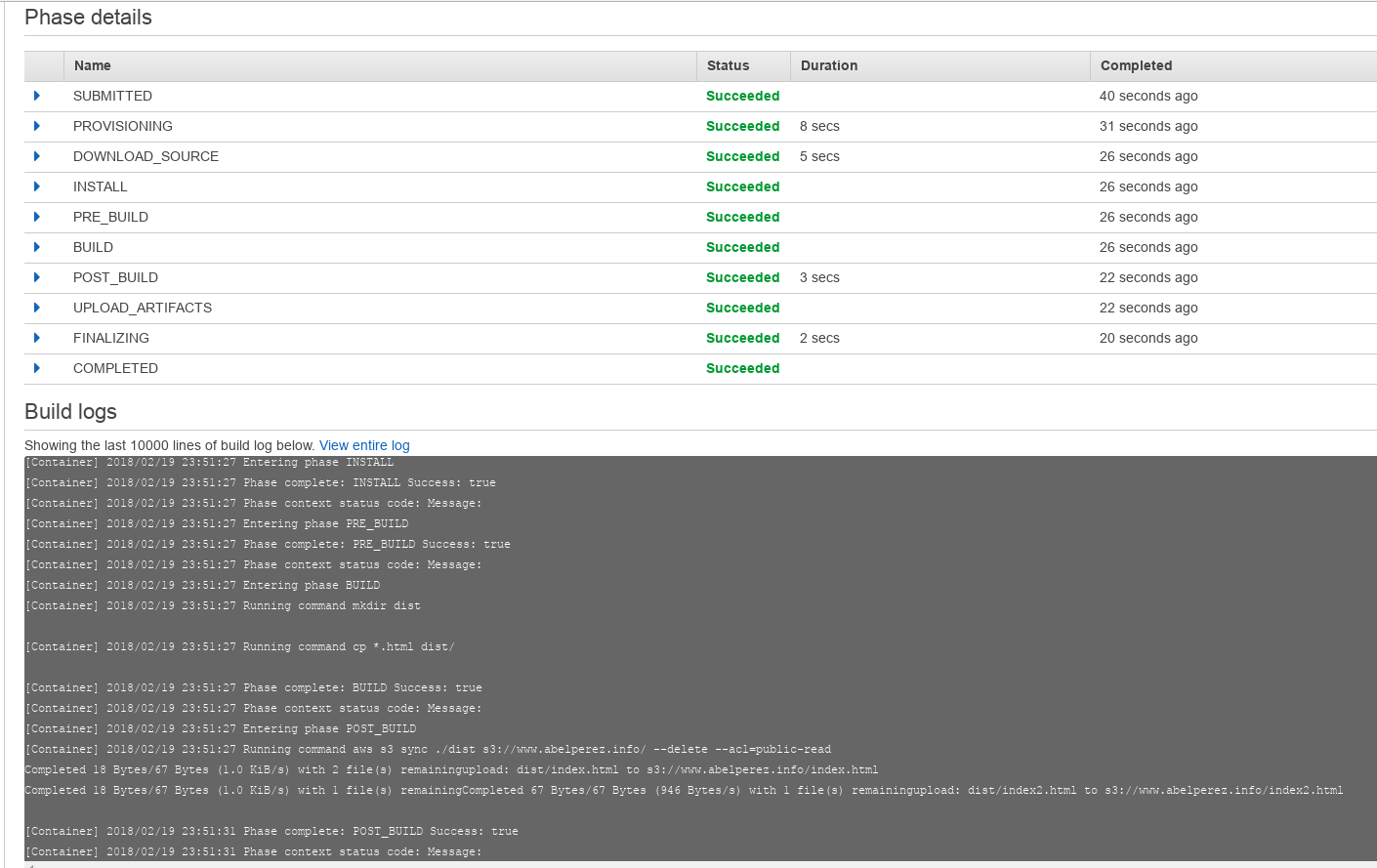
Now let's check CodeBuild console to see the build being triggered by the rule we've created
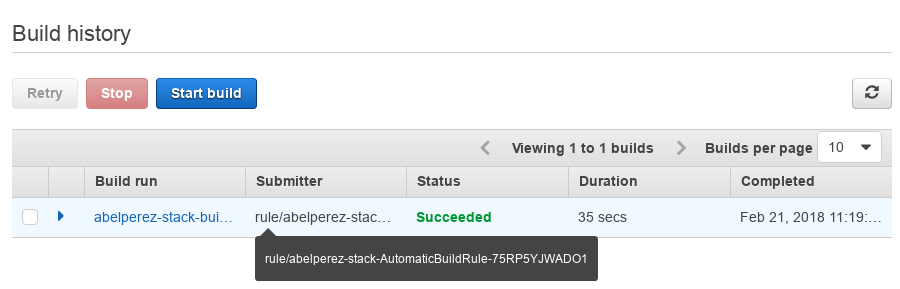
As expected, the build ran without any human intervention, which was the goal of the CloudWatch Event rule. Since the build succeeded, we can also check the existence of the new file in the bucket.

abel@ABEL-DESKTOP:~/Downloads$ aws s3 ls s3://www.abelperez.info
2018-02-21 23:19:53         18 index.html
2018-02-21 23:19:53         49 index2.html
2018-02-21 23:19:53         49 index3.html

Tuesday, 20 February 2018

Serverless static website - part 7

Now that we have our source code versioned and safely stored, we need a way to make it go to our S3 bucket, otherwise it won't be visible to the public. There are, as usual, many ways to address this scenario, but as a developer, I can't live without CI/CD integration for all my processes. In this case, we have a very simple process, and we can combine the building and deploying steps in one go. To do that, once again, AWS offers some useful services, I'll be using CodeBuild for this task.

Creating the access policy

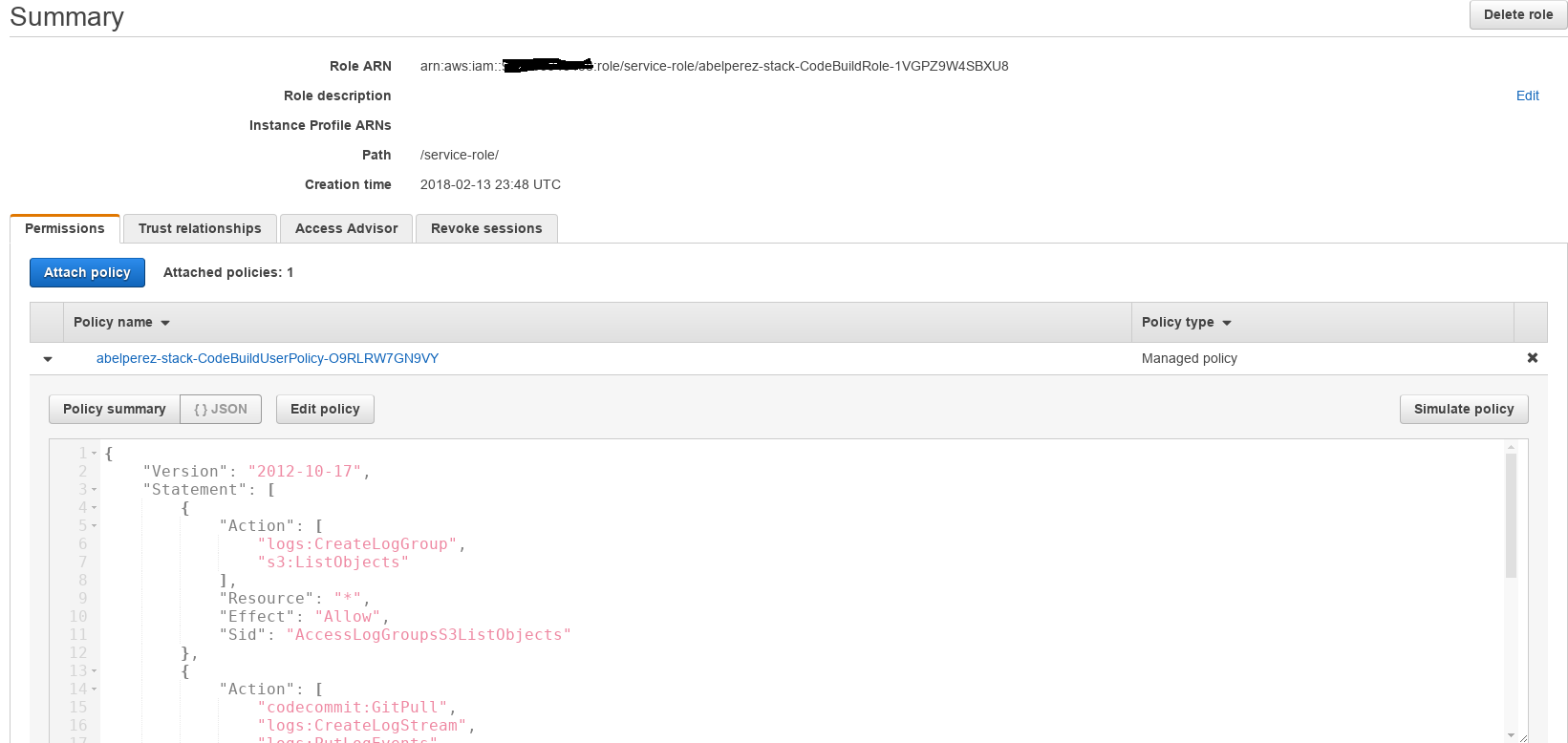
Just like anything in AWS, a CodeBuild project needs access to other AWS services and resources. The way this is done is by applying service roles with policies. As per AWS docs, a CodeBuild project needs the following permissions:

  • logs:CreateLogGroup
  • logs:CreateLogStream
  • logs:PutLogEvents
  • codecommit:GitPull
  • s3:GetObject
  • s3:GetObjectVersion
  • s3:PutObject

The difference is that the proposed policy in the docs does not restrict access to any resource, it suggests to change the * to something more specific. The following is the resulting policy restricting access to logs in the log group created by the CodeBuild project. Also I've added full access to the bucket, since we'll be copying files to that bucket. In summary, the policy below grants the following permissions (account id is masked with 111111111111):

  • Access to create new log groups in CloudWatch
  • Access to create new log streams within the log group created by the build project
  • Access to create new log events within the log stream created by the build project
  • Access to pull data through Git to CodeCommit repository
  • Full Access to our S3 bucket where the files will go
{
    "Version": "2012-10-17",
    "Statement": [
        {
            "Action": [
                "logs:CreateLogGroup",
                "s3:ListObjects"
            ],
            "Resource": "*",
            "Effect": "Allow",
            "Sid": "AccessLogGroupsS3ListObjects"
        },
        {
            "Action": [
                "codecommit:GitPull",
                "logs:CreateLogStream",
                "logs:PutLogEvents"
            ],
            "Resource": [
                "arn:aws:logs:eu-west-1:111111111111:log-group:/aws/codebuild/
                 abelperez-stack-builder",
                "arn:aws:logs:eu-west-1:111111111111:log-group:/aws/codebuild/
                 abelperez-stack-builder:*",
                "arn:aws:codecommit:eu-west-1:111111111111:abelperez.info-web"
            ],
            "Effect": "Allow",
            "Sid": "AccessGitLogs"
        },
        {
            "Action": "s3:*",
            "Resource": [
                "arn:aws:s3:::www.abelperez.info",
                "arn:aws:s3:::www.abelperez.info/*"
            ],
            "Effect": "Allow",
            "Sid": "AccessS3staticBucket"
        }
    ]
}

Creating the service role

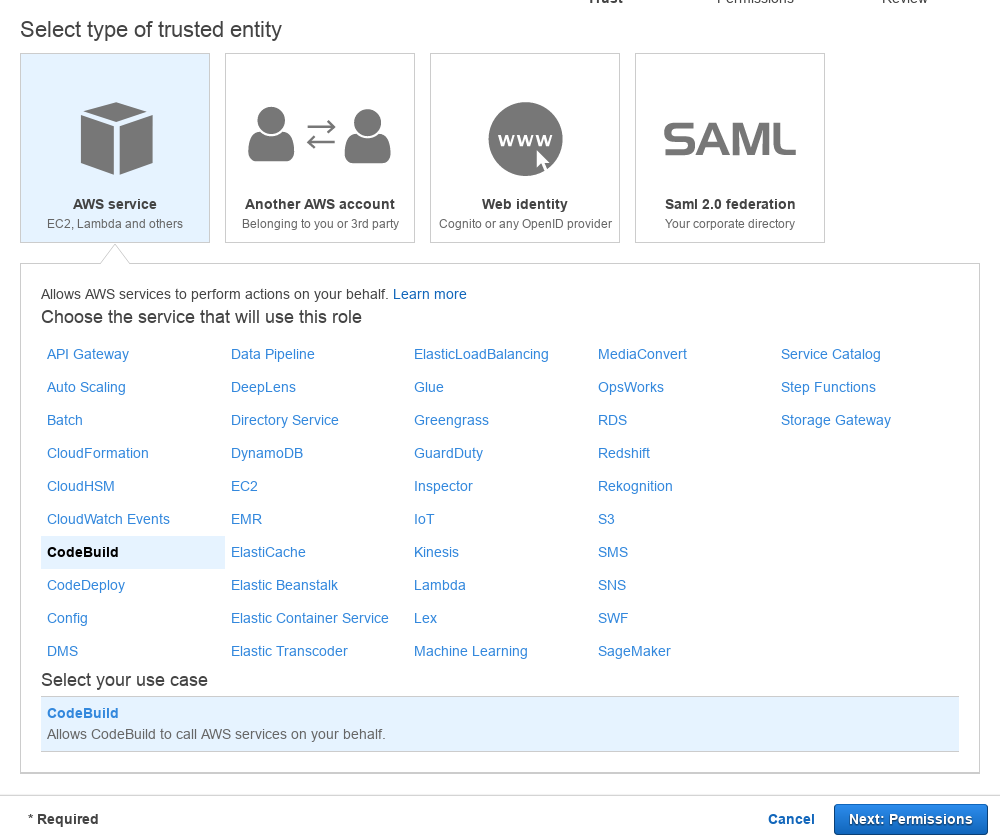
Go to IAM console, select Roles from the left hand side menu, click on Create Role. On the Select type of trusted entity screen, select AWS service EC2, Lambda and others and from the options, CodeBuild

Click Next: Permissions, at this point, we can create a policy with the JSON above or continue to Review and then add the policy later. To create the policy, click Create Policy button, select JSON tab, paste the JSON above, Review and Create Policy, then back to role permission screen, refresh and select the policy. Give it a name, something like CodeBuildRole or anything meaningful and click on Create Role to finish the process.

Creating the CodeBuild project

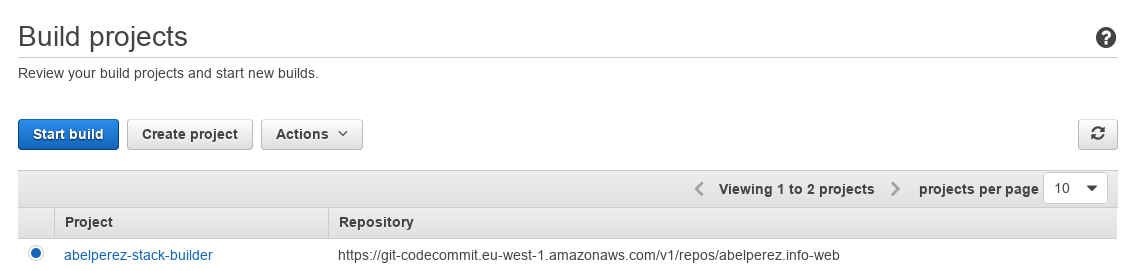
With all permissions set, let's start with the actual CodeBuild project, where we'll specify the source code origin, build environment, artifacts and role. On CodeBuild console, if it's the first project, click Get Started, otherwise select Build projects from the left hand side menu, and click on Create Project

Enter the following values:

  • Project name* a meaningful name i.e "abelperez-stack-builder"
  • Source provider* select "AWS CodeCommit"
  • Repository* select the repository previously created
  • Environment image* select "Use an image managed by AWS CodeBuild"
  • Operating system* select "Ubuntu"
  • Runtime* select "Node.js"
  • Runtime version* select "aws/codebuild/nodejs:6.3.1"
  • Buildspec name leave default "buildspec.yml"
  • Artifacts: Type* select "No artifacts"
  • Role name* select the previously created role

After finishing all the input, review and save the project.

Creating the build spec file

When creating the CodeBuild project, one of the input parameters is the Buildspec file name, which refers to the description of our build process. In this case, it's very simple process:

  • BUILD: Create a directory dist to copy all output files
  • BUILD: Copy all .html file to dist
  • POST_BUILD: Synchronise all content of dist folder with www.abelperez.info S3 bucket

The complete buildspec.yml containing the above steps:

version: 0.2

phases:
  build:
    commands:
      - mkdir dist
      - cp *.html dist/

  post_build:
    commands:
      - aws s3 sync ./dist s3://www.abelperez.info/ --delete --acl=public-read

The last step is executed on post build phase, which is at the end of the all build steps when everything is ready to package / deploy or in this case ship to our S3 bucket. This is done by using the sync subcommand of s3 service from AWS Command line interface. It basically takes an origin and a destination and make them to be in sync.

--delete instructs to remove files in the destination that are not in the source, because by default they are not deleted.

--acl=public-read instructs to edit bucket objects' ACL, in this case read access to everyone.

At this point, we can remove the bucket policy previously created if we wish so, since every single file will be publicly accessible, that would allow to have other folders in the same bucket and not being accessible. It will depend on the use case for the website.

Let's test it

It's time to verify if everything is in the right place. We have the build project with some basic commands to run and assuming the above code is saved in a file named buildspec.yml at root level of the code repository, the next step is to commit and push that file to CodeCommit.

Let's go back to CodeBuild console, select the build project we've just created and click Start build, then choose the right branch (master in my case) and once again Start build.